A time to help plan receiving
Senders using Cario Connect TMS with the Cario Driver Application can show an expected delivery time when it is available. Winc is the example shown here.

PREPARED FOR SUPER RETAIL GROUP
Give every store the visibility to know what’s coming, what’s arrived and what needs attention.
Cario’s Store Portal brings incoming freight from multiple carriers and senders into one simple dashboard. Less chasing. Fewer tabs. More time for your customers.
Built for stores, warehouses and business units.
SEE THE PORTAL IN ACTION
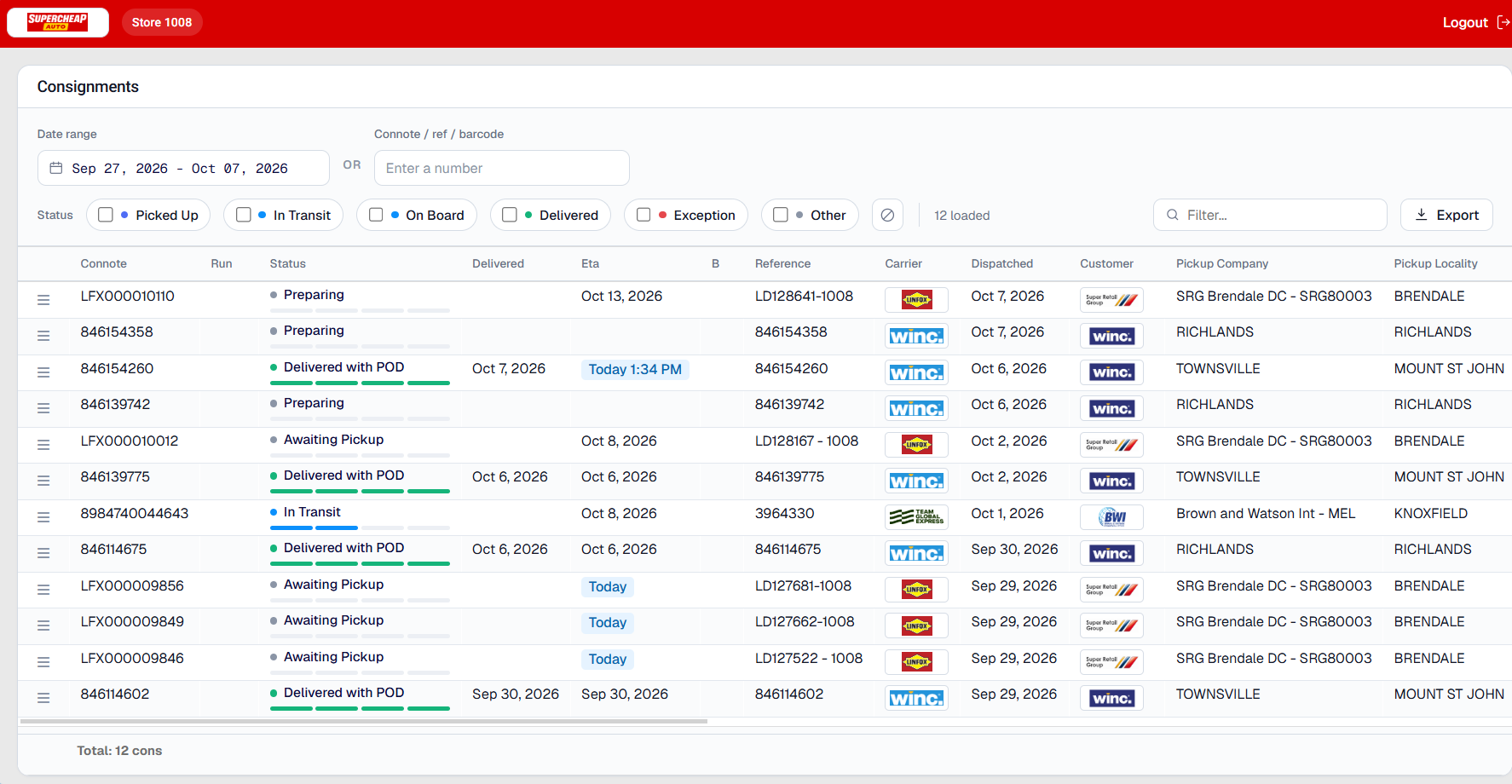
A quick walkthrough of the dashboard, delivery documents, shipment detail and search. The guide below uses Supercheap Auto and BCF examples to show how store teams can check incoming freight.
The video opens on a store’s consignment dashboard. A consignment opens to reveal event milestones, proof of delivery, shipping units and address details. The walkthrough returns to the dashboard and uses a consignment reference to find a matching record.
Answer with confidenceCheck the latest freight information yourself.
Prepare your teamUse ETAs and item details to plan receiving.
Focus your follow-upFind exceptions before they become a chase.
A CLEARER DAY STARTS HERE
See incoming consignments across carriers and sending businesses. Find the delivery you need, understand its progress and open the details without jumping between tracking websites.
A 10-day date range is set automatically to show current transactions. Start with this view; change the Date range only if you need entries outside it. You can choose a day, a week, a month or a longer period across available records.
01 / ACCESS FOR EVERY LOCATION
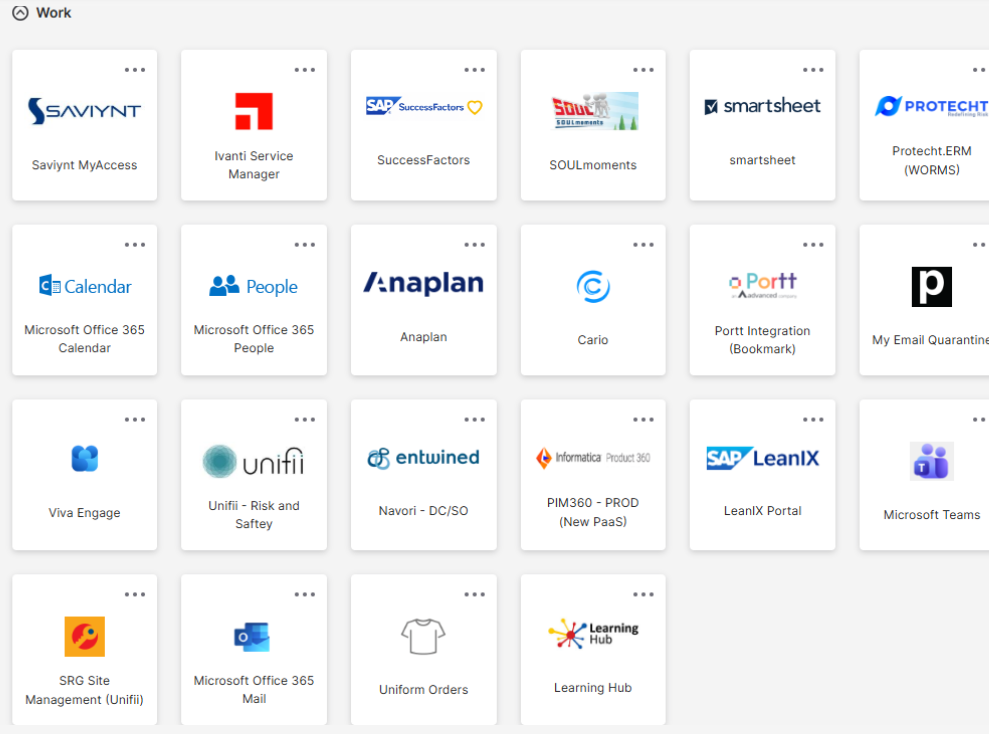
Open your Store Portal from the Cario tile in SRG’s Okta dashboard. Single sign-on (SSO) takes you straight into Cario, with visibility of freight coming to your location.
Use your usual SRG sign-in process to access your work apps.
Look for Cario in your app tiles. It’s the clear tile outlined in blue in this example.
Okta signs you into Cario automatically. Check your store details and start reviewing incoming freight.
The benefit: access your incoming freight from the work dashboard you already use, then answer routine delivery questions directly.
02 / FIND WHAT MATTERS
The portal opens with a 10-day date range already set. Review current transactions straight away, then use the filters to answer a specific question about your freight.
You do not need to choose dates each time you open the portal. The default range shows current transactions.
Looking outside that range? Select Date range, choose the start and end dates you need, then check the updated consignment list.
EXAMPLE · DELIVERED
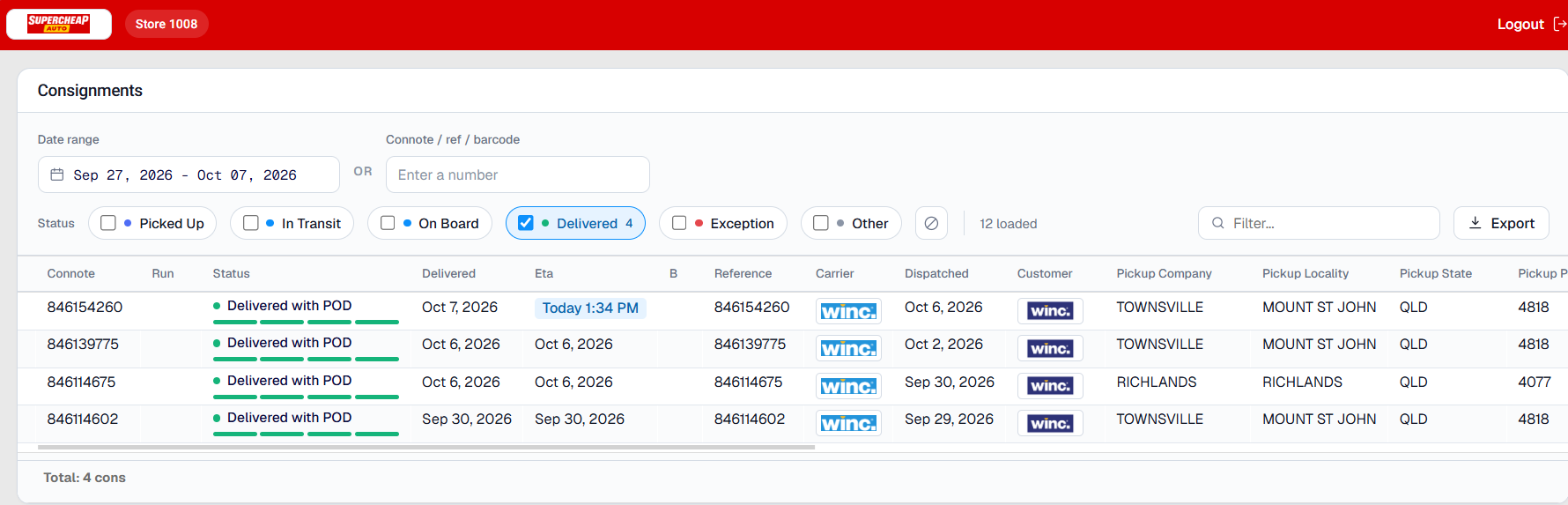
Select Delivered to show completed deliveries. In this Supercheap Auto example, four results show “Delivered with POD”. Open the row’s shortcut menu to view the consignment details and available proof of delivery.
You’re checking received freight or answering a query about a completed delivery.
Use Connote / ref / barcode to search by the identifier you have. Use the separate Filter field to refine the loaded list by text such as Followmont, Nolan or Winc.
READING THE ETA COLUMN
The detail you see depends on the sender and carrier service. Use the ETA to plan your receiving team, and check the status alongside it.
Senders using Cario Connect TMS with the Cario Driver Application can show an expected delivery time when it is available. Winc is the example shown here.
Other carrier services show the expected delivery day or date. “Today” indicates the expected day; it does not provide a specific arrival time.
ETAs are estimates and can change. A time is shown when supplied by the service; other services show an expected day or date.
03 / KNOW WHERE TO FOCUS
Use status filters to see what has been collected, what is expected today and what has arrived. The next action depends on the status and the detail behind it.
Freight has been picked up from the sender.
Check its progress towards your store.Freight is moving through the carrier network.
Review the ETA to plan ahead for receiving.Expected to be delivered today.
Prepare your team and check the ETA for any available time.Delivery is complete.
Open the row’s shortcut menu to view details and see the POD when available.Freight flagged for attention.
Check the alert and consignment details to decide what needs follow-up.Statuses outside the main delivery milestones.
Includes Preparing or Awaiting Pickup. These are not automatically exceptions.FILTER, THEN CHECK THE CONTEXT
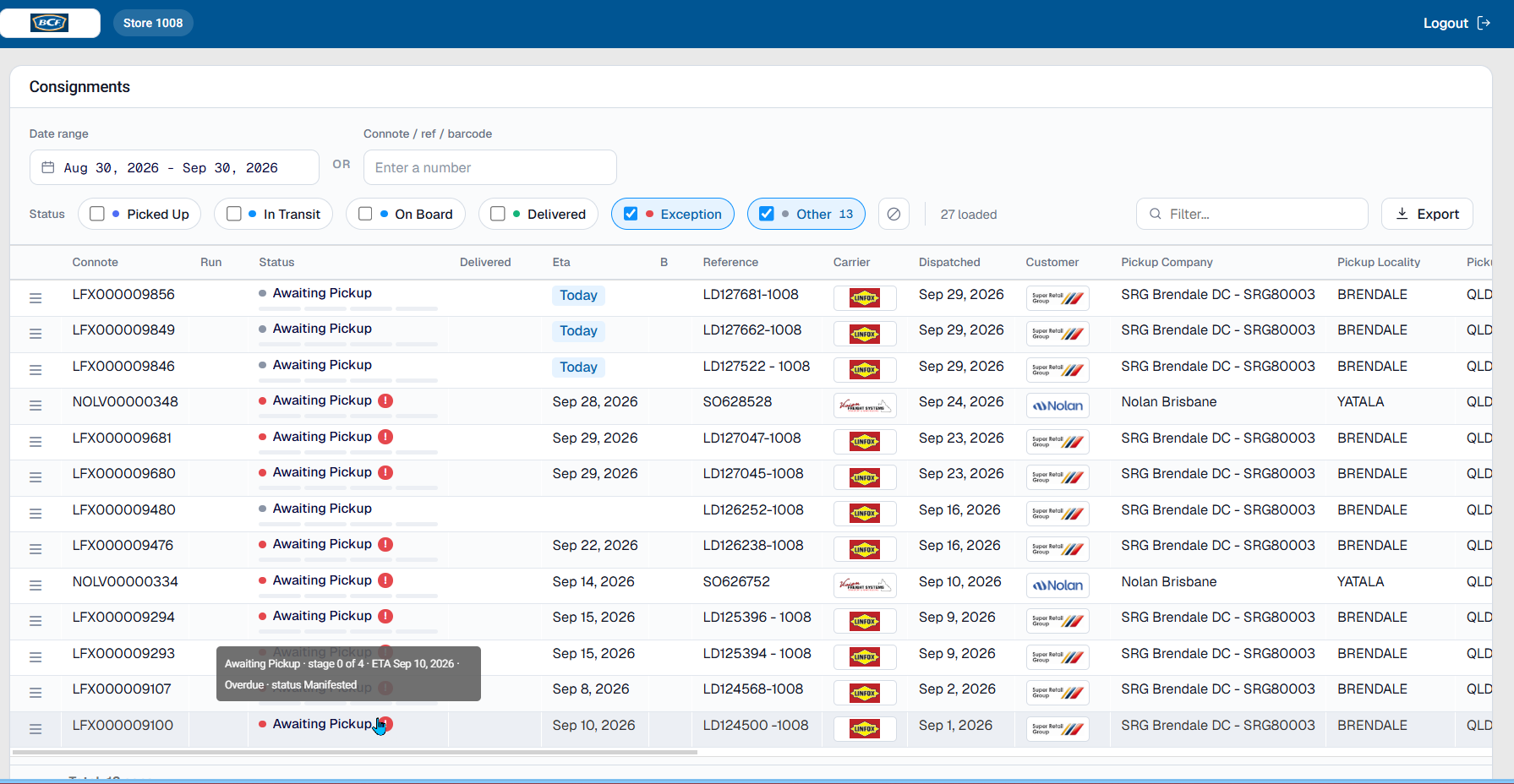
Select Exception to focus on flagged freight. Select Other to include statuses such as Awaiting Pickup. You can select both, as shown in this BCF example.
Hover over a status, progress bar or alert icon for extra context. A tooltip can show the freight stage, ETA, overdue flag and recorded event code. Deselect a checkbox to remove that filter.
Here, Awaiting Pickup with an Overdue flag is a prompt to review the details and follow up. The tooltip helps you understand why the row needs attention.
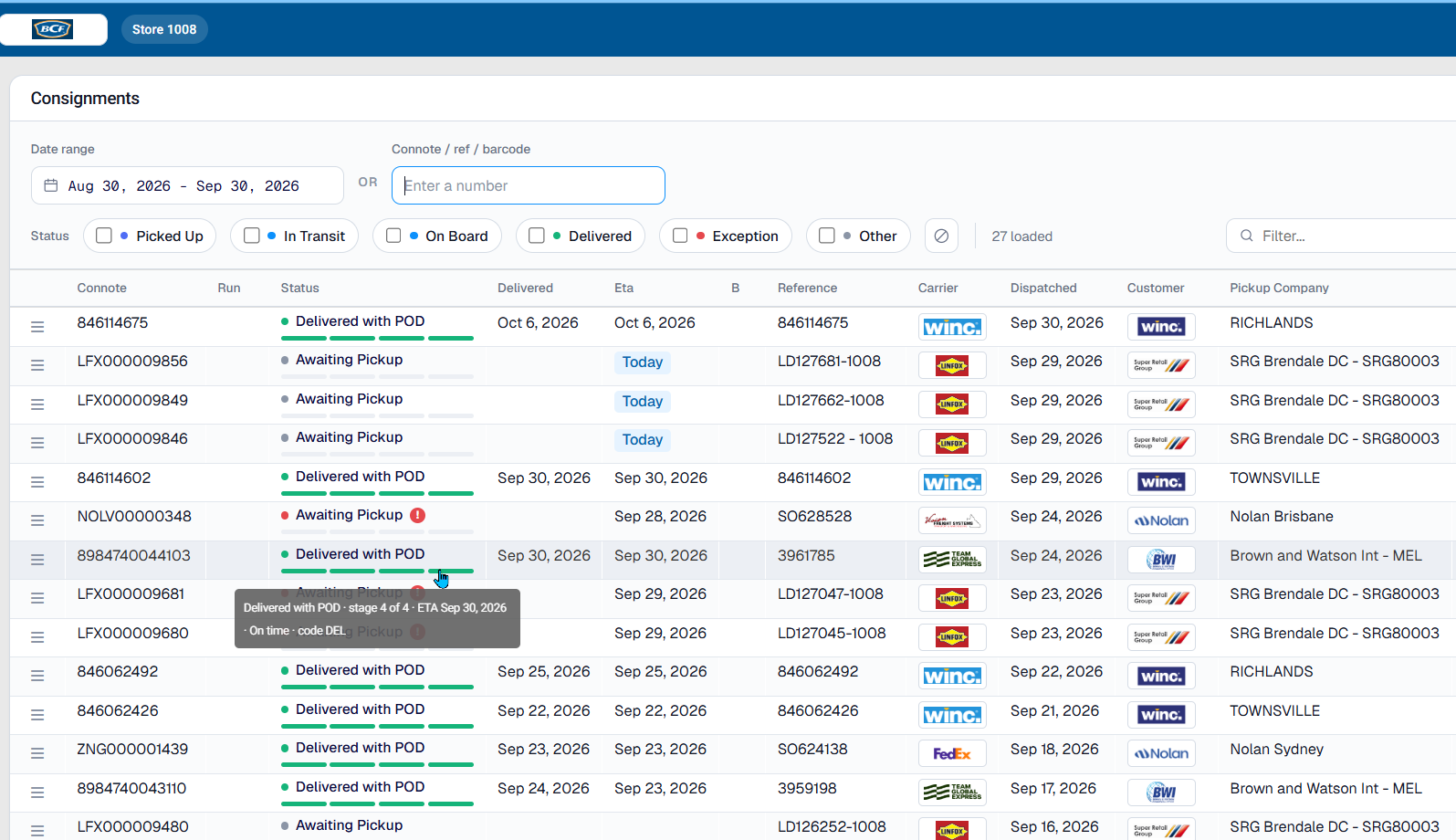
Hover over a delivered status or its progress bar to see the recorded context. This example shows stage 4 of 4, the ETA, On time and event code DEL. To view the delivery evidence, open the row’s shortcut menu.
04 / GO BEYOND THE TRACKING LINE
Delivery is complete? Open the shortcut menu at the left of the consignment row to view its details. Check the available proof of delivery, delivery photos, shipping units and event milestones.
Open the row’s shortcut menuLook for the three horizontal lines at the left of the consignment.
View the consignment detailsSelect the Proof of Delivery tab.
Check the available evidenceReview the document and any delivery photos provided.
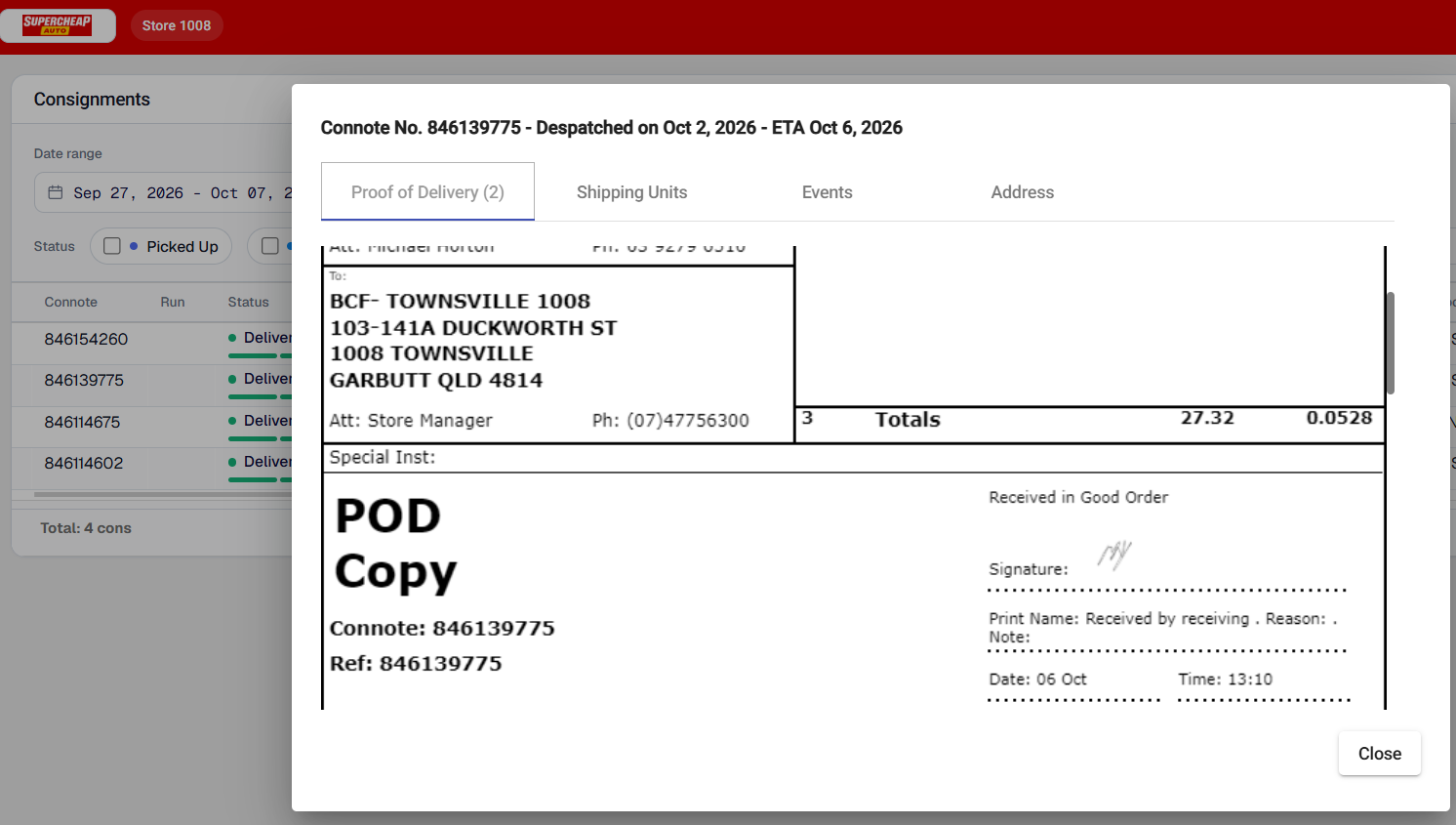
Documents, photos and events depend on the information supplied to Cario. Use available photos to review the visible condition of the freight at the recorded stage; not every consignment includes photos. A delivered status may appear before a POD is available.
05 / MAKE THE VIEW WORK FOR YOU
Set up the dashboard around the way your team works, then take the data into your operational workflows.
Drag column headers into the order that suits you. Keep the details you check most—such as ETA, status or carrier—towards the front.
Click a column header to sort. Sort by item count to identify larger consignments and help your team prepare for receiving.
Use Export to download a CSV for reporting, operational checks or import into your own spreadsheets and integration workflows.
06 / CALL TO ACTION